
If your website is not showing up on Google, first establish which problem you have: Google has not indexed the page, or the page is indexed but is not appearing for the searches you care about. Those situations need different fixes.
Start with one important page, such as the page describing your main service. Write down its exact address and the search you expected it to appear for. “Our website is missing” is difficult to investigate. “Our repair page does not appear for this service search in our city” gives you something specific to test.
This checklist will help you collect useful evidence before changing content, buying software or starting a redesign.
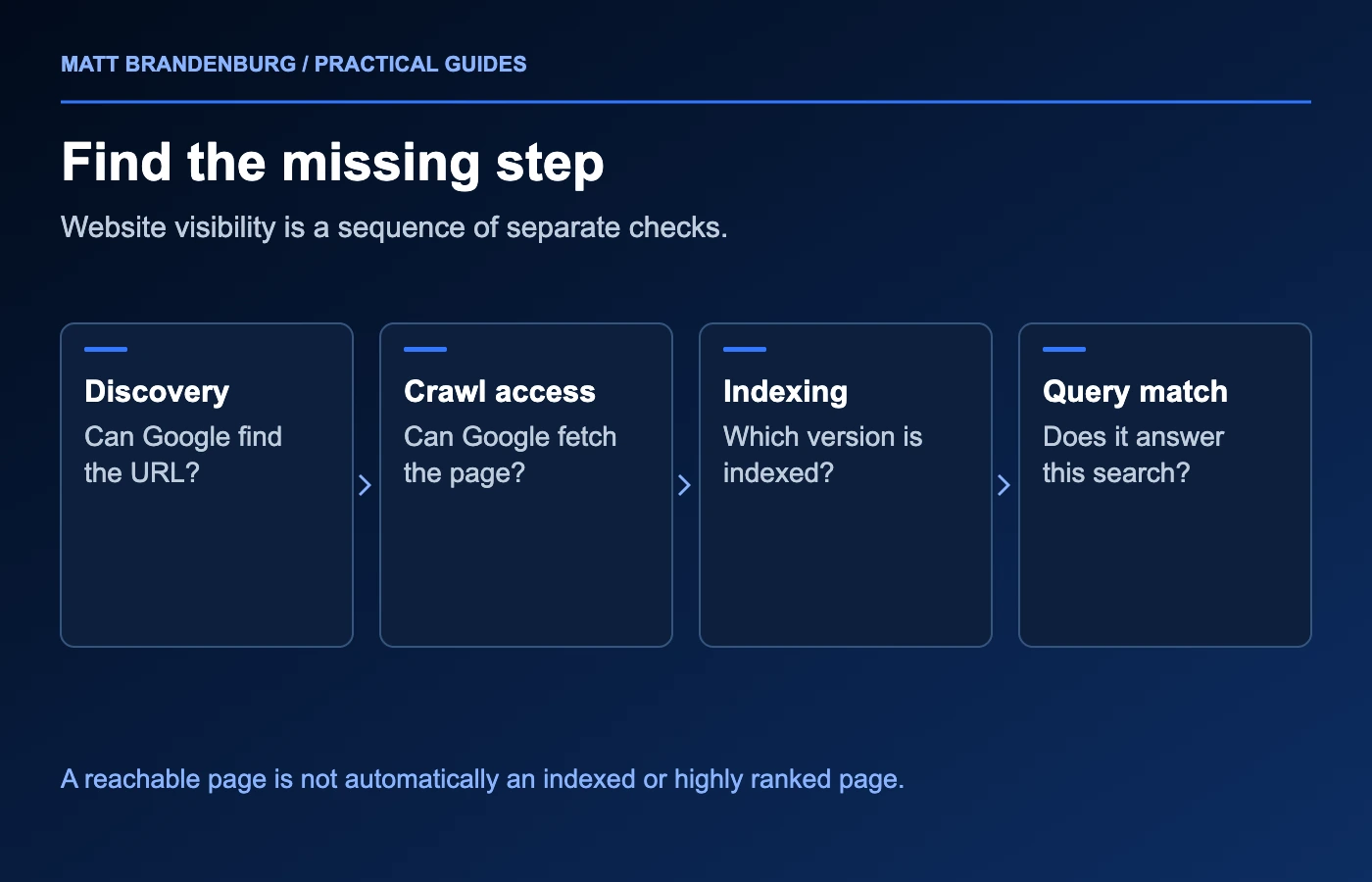
1. Separate an indexing problem from a ranking problem
Open Google Search Console for your website and inspect the complete page URL. If you do not have access, ask a current property owner to add you or follow Google's site-ownership verification process. Look at the indexed result first, then use the live test if the page has changed. The indexed result describes Google's stored version; the live test checks the current page's accessibility and possible indexability. A successful live test does not mean the page has entered the index. Google explains the distinction in its URL Inspection documentation.
Record the reported status rather than relying on a manual Google search alone.
| What you find | What to investigate next |
|---|---|
| The URL is not indexed | Read the stated exclusion reason and inspect access, indexing controls and discovery. |
| Google selected another canonical URL | Determine whether the other page is the correct version or an unintended duplicate. |
| The URL is indexed but has little visibility | Examine the searches it serves, page usefulness and competing results. |
| The website appears, but the business is missing from Maps | Investigate the Business Profile separately through Local Search and Maps. Website indexing does not diagnose a Maps issue. |
Check the homepage and a second important page as well. If one service page is missing while the rest of the site appears, that is a different investigation from a widespread change after a migration. For widespread absence or an unexplained drop, also check Search Console's Manual actions and Security issues reports and follow any issue-specific guidance.
2. Check access and accidental indexing restrictions
Load the affected page in a browser while signed out of your website account. Confirm that visitors reach the intended content without a login, error message or unexpected redirect. Then have your developer check the HTTP response and whether Google's crawler can access the page. Search Console's Crawl Stats can help identify broader availability problems. Google's crawling troubleshooting guide explains the relevant reports.
A page can load normally for you while instructing search engines not to index it. This sometimes happens when development settings remain enabled after launch. Ask whoever maintains the website to check both the page's robots metadata and its HTTP headers for an unintended noindex rule.
Do not remove every restriction across the site. Account areas, private files and some utility pages may be excluded intentionally. Fix the setting on pages that should be public search results.
Also distinguish robots.txt from noindex: blocking crawling does not reliably remove a URL from results, and it can prevent Google from reading a page's noindex instruction. Google documents how these controls interact.
A useful question for your developer is: “Can Google retrieve this exact public page, and does anything on the response tell Google not to index it?” That is more actionable than asking for a general SEO fix.
3. Check which version of the page Google should use
A canonical URL is the preferred version among duplicate or substantially similar pages. Your website may expose a page through several addresses, particularly after a redesign or platform change.
Compare the preferred URL with the canonical Google selected in the indexed inspection result. If your intended service page points to an unrelated page, investigate the template or configuration that created that signal. If Google selected the correct version of a duplicate, the alternate URL's exclusion may be expected.
Keep redirects, canonical references and internal links consistent with the version you want customers to use. These are signals, rather than an instruction that guarantees Google's choice. Google's canonical guidance covers the available methods.
For example, imagine a hypothetical business moved its service page from /services/repairs-old to /repairs. The work is to check the actual redirect, current links and preferred URL together. Creating a third version would make the situation harder to understand.
4. Make important pages easy to discover
Follow the links from your homepage as a customer would. Can you reach the service page through the main navigation, a relevant service overview or another useful page? A URL that exists only in a spreadsheet is difficult for both people and crawlers to find.
Check that the website's sitemap includes the intended public URL and that Search Console can read the sitemap. A sitemap helps with discovery, but submitting one does not guarantee crawling or indexing. It also does not replace clear navigation. Google's sitemap overview explains its role.
For a new service page, a practical discovery check is:
- The page loads at the intended permanent address.
- The main service overview links to it where visitors would expect it.
- Relevant articles link to it when the service answers the reader's next question.
- The sitemap uses the same preferred address.
After fixing an actual issue, you can use Request indexing in URL Inspection to ask Google to recrawl the page. A request does not guarantee indexing, and repeated requests are not a substitute for resolving the underlying problem.
5. If the page is indexed, assess what the searcher needs
When the page is eligible to appear, focus on the specific search rather than continuing to troubleshoot indexing.
Read the page as a potential customer. Does it clearly explain the service, who it is for, where it is available and how someone can take the next step? Are important answers available in the main content, or buried in an image, vague slogan or unrelated article?
Then inspect the results for the query you care about. Record the date, location and device you used. If the results are mainly buying guides, a short sales page may not fully answer that search. If they are service pages, a broad educational article may be the wrong destination. Treat this as a content-planning observation, not proof that copying a competitor will produce the same ranking.
Search Console's performance data can help you choose which existing pages and queries deserve attention. Look for relevant impressions and changes over comparable periods; avoid treating one manual search as a complete picture.
6. Keep a repair log and measure the right outcome
Use a short log with the URL, observed issue, evidence, change made, date and next check. This prevents several people from making overlapping changes without knowing which problem each change addresses.
Your first milestone might be that Google can access and index the intended page. The next is visibility for relevant searches. After that, check whether the resulting visits lead to received inquiries and suitable customers. My marketing measurement framework explains how those stages fit together.
If you need help separating a technical issue from a content or competitive problem, explore my SEO services or send me the affected URL and what you have observed. A focused diagnosis gives the next change a clear purpose.